The God Beneath the WatersScreenshots use the English interface. Instructions follow your selected language.
30 tasks
No matching tasks. Try another word.
01
Start an adventure
01
Choose your starting point
+
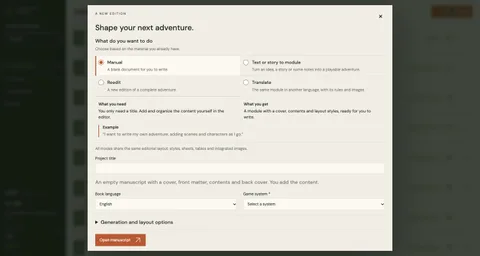
Open New project. Manual starts a blank book; Text or story to module develops an idea or notes. Paste text or upload a PDF, TXT or Markdown document.
Reedit works from a complete adventure. Translate preserves its content, rules and images in another language. Choose the source system and the book language.
Real editor · English interface and manuscript
01 / 04
Choose your starting point01 / 04Choose your starting point02 / 04Choose your starting point03 / 04Choose your starting point04 / 04
02
Choose what changes
+
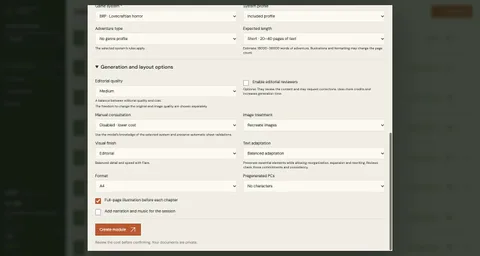
For a reedition, choose how much to adapt the text, whether to keep or recreate images, and whether to convert systems. These are independent choices.
Expand Generation and layout options for quality, reviewers, visual finish, format, pregenerated characters and audio where available. Review the estimate before confirming creation.
Real editor · English interface and manuscript
Choose what changes01 / 01
03
Manage your projects
+
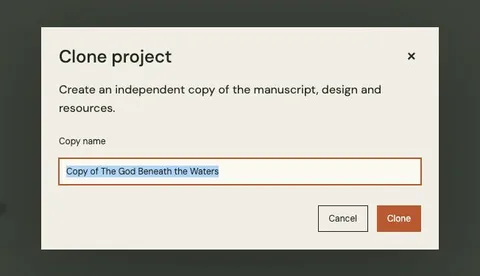
Open Editorial projects to return to a book. Its options menu offers Rename, Clone and Delete.
Clone creates an independent copy of the manuscript, design and resources. Name the copy before confirming. Download anything you need to retain before deleting a project.
Real editor · English interface and manuscript
Manage your projects01 / 01
02
Write and organize
04
Navigate from the index to the text
+
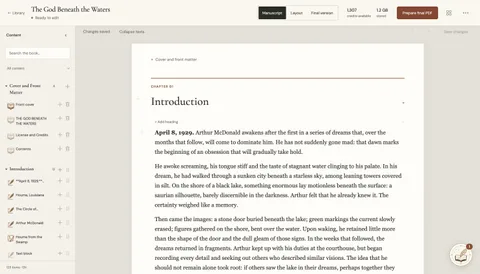
Open Content and find the item. Click its small icon (Go to item) to jump to its position in the book.
Click the item’s name to open its editing window. These are two different actions: go to the passage or edit the object.
Real editor · English interface and manuscript
01 / 02
Navigate from the index to the text01 / 02Navigate from the index to the text02 / 02
05
Move or delete an item
+
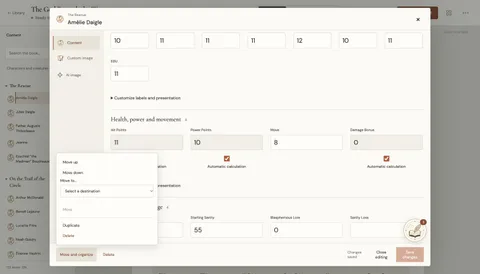
Open Move and organize beside the item to choose its destination. Keep scenes inside the chapter where they belong.
The organization menu also offers Rename and Duplicate. Move up and Move down change the order of chapters; use the destination options shown for other items.
Use Delete on the item you want to remove and read any confirmation. Check the result; use structure Undo or Redo when available.
Real editor · English interface and manuscript
01 / 02
Move or delete an item01 / 02Move or delete an item02 / 02
06
Write and format text
+
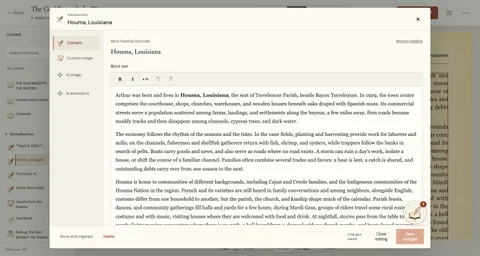
In Manuscript, click a text block to write directly. Edit its heading separately or use Add heading when it has none.
Select text to apply formatting such as bold or lists. Save changes and wait for Changes saved before leaving; check the result in Layout.
Real editor · English interface and manuscript
01 / 02
Write and format text01 / 02Write and format text02 / 02
07
Add the right kind of content
+
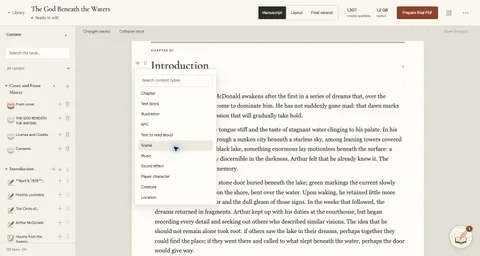
Use Add content in a chapter or scene. More options includes clues, rules, GM notes, handouts, tables, places and creatures, each with its own fields.
Edit the written content separately from its illustration. Changing the text of an illustrated handout does not redraw its image; regenerate it when you want the document to reflect those changes.
Real editor · English interface and manuscript
01 / 03
Add the right kind of content01 / 03Add the right kind of content02 / 03Add the right kind of content03 / 03
Tables and conversions
Tables have editable cells, row and column controls, and an optional header. Use the object menu to convert eligible text blocks into another content type, such as a GM note.
08
Edit a character sheet
+
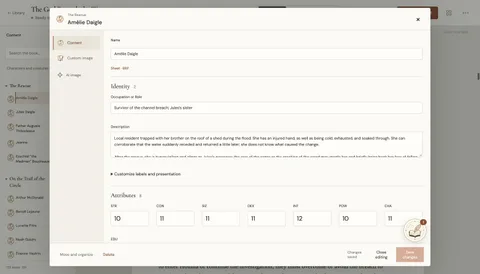
In Content, filter Characters and creatures and select a character. Its sheet follows the chosen system.
Edit attributes, skills and equipment, then save. Custom fields add information; they do not create game rules.
Real editor · English interface and manuscript
01 / 03
Edit a character sheet01 / 03Edit a character sheet02 / 03Edit a character sheet03 / 03
Labels, custom fields and calculations
Customize labels and presentation to rename, reorder or hide sheet fields; hiding a field keeps its value. Add custom fields for information your game needs.
For calculated values, choose automatic calculation or enter a manual value. Check the resulting sheet before saving.
03
Images, maps and audio
09
Find and reuse resources
+
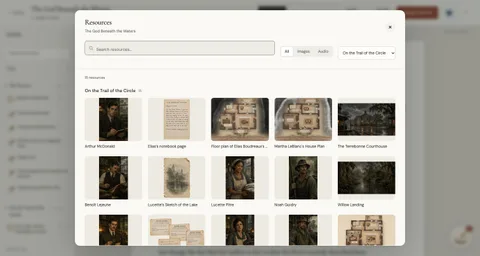
Open Project resources to browse images and audio. Search or filter by chapter and resource type; open a resource to inspect it or reveal it in the manuscript.
An illustration’s Custom image tab can reuse a saved image through Choose from gallery. A copied image can then be edited independently.
Real editor · English interface and manuscript
01 / 02
Find and reuse resources01 / 02Find and reuse resources02 / 02
10
Upload a custom image
+
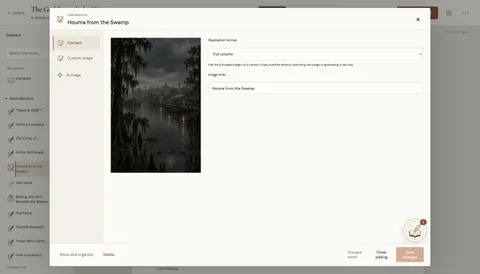
Open an illustration or character, then Custom image. Choose your PNG, JPG or WebP (up to 15 MB), or select an existing image from the gallery.
Choose whether to replace the image or add it after the entry, where offered. Set its title and save; adjust its PDF placement in Content.
Real editor · English interface and manuscript
01 / 02
Upload a custom image01 / 02Upload a custom image02 / 02
11
Crop an image without losing the original
+
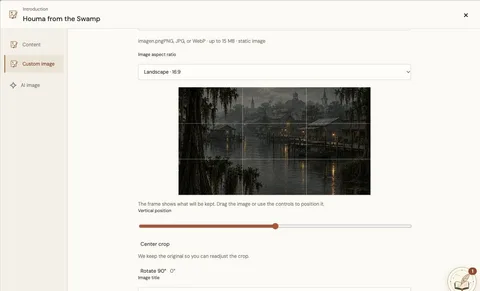
In Custom image, choose Fit this image. Set the aspect ratio, position and rotation, then check the crop preview.
Save the image when it is ready, or discard the draft. The original remains available. Use Content to choose how the image occupies the book page.
Real editor · English interface and manuscript
Crop an image without losing the original01 / 01
12
Generate or edit an illustration
+
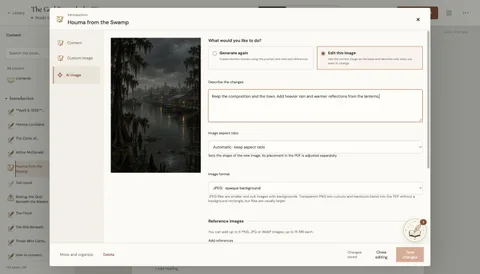
AI image can create a new picture or edit the current one. For an edit, describe the specific change and what should stay. Check the estimate before generating.
Attach or choose reference images from the catalog. Assign their role: composition, character or object, or style. Image aspect ratio and placement on the book page are separate settings.
Real editor · English interface and manuscript
01 / 03
Generate or edit an illustration01 / 03Generate or edit an illustration02 / 03Generate or edit an illustration03 / 03
13
Build a map that supports the scene
+
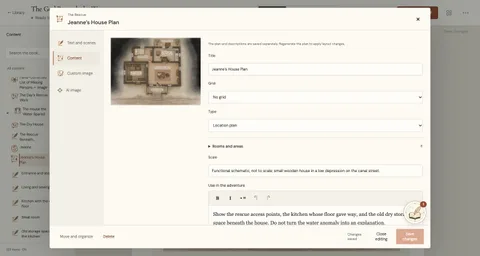
A map’s Content tab holds its grid, type, scale, rooms and areas, and connections. Give each area a key, name, description and access information.
Text and scenes edits the readable descriptions. The plan image is saved separately: regenerate it after layout changes so its visual matches the new rooms and connections.
Real editor · English interface and manuscript
01 / 04
Build a map that supports the scene01 / 04Build a map that supports the scene02 / 04Build a map that supports the scene03 / 04Build a map that supports the scene04 / 04
14
Add music and sound
+
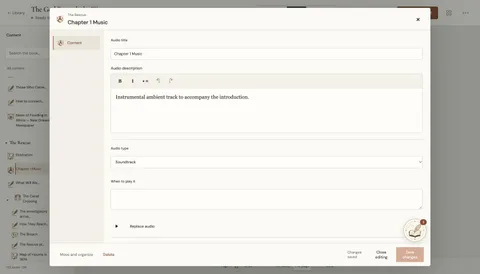
In a chapter or scene, open Add content and choose Music or Sound effect; expand More options if needed.
Upload your audio or describe what to generate. Review the estimate, then listen to the track and keep it with the scene it accompanies.
Real editor · English interface and manuscript
01 / 03
Add music and sound01 / 03Add music and sound02 / 03Add music and sound03 / 03
Narration and listening from the PDF
Audio supports soundtrack, ambience, effects and narration. Upload your own track or review the estimate before AI generation. Duration controls depend on the audio type.
Audio links in a PDF open the listening page. Access requires the book owner’s Recast session; they are not public audio downloads.
04
Make it your edition
15
Set up your edition
+
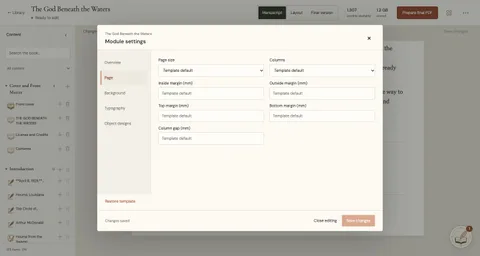
Open ••• → Module settings. Page controls paper, columns and margins; Background controls the interior page background.
Typography controls fonts, size, spacing and colours. Save changes and check the result in Layout.
Real editor · English interface and manuscript
01 / 04
Set up your edition01 / 04Set up your edition02 / 04Set up your edition03 / 04Set up your edition04 / 04
16
Typography and style
+
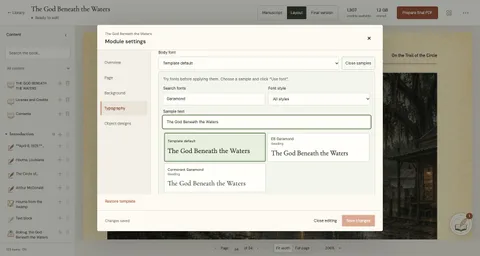
In Typography, open Browse fonts. Search by name or style and try your own sample text. Use font applies your choice; review the layout and save.
Real editor · English interface and manuscript
Typography and style01 / 01
17
Apply your own design
+
Open Module settings → Object designs and choose an object, chapter or page. Open the design assistant and describe the visual change, including what to preserve.
Compare Saved design and Proposal. The example turns GM notes into cream panels with a green border and a copper divider, keeping their illustration and text.
Apply design adopts the proposal in the draft. Save changes stores it in this module. Then inspect the actual pages in Layout; a preview alone does not change the book.
Real editor · English interface and manuscript
01 / 05
Before01 / 05Applied to the module02 / 05Saved in the book03 / 05Apply your own design04 / 05Apply your own design05 / 05
18
Finish the front and back covers
+
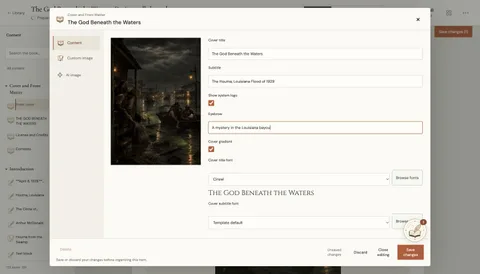
Open Front cover from the index. Edit title, subtitle and their fonts; choose your own image or AI image. Available templates also offer an eyebrow, gradient and system logo.
Open Back cover to write its synopsis and choose its image. Its title comes from the front cover.
Save each item, then check both pages in Layout. The example uses the existing artwork, a Cinzel title and a new back-cover synopsis.
Real editor · English interface and manuscript
01 / 04
Finish the front and back covers01 / 04Finish the front and back covers02 / 04Finish the front and back covers03 / 04Finish the front and back covers04 / 04
19
Create your own system profile
+
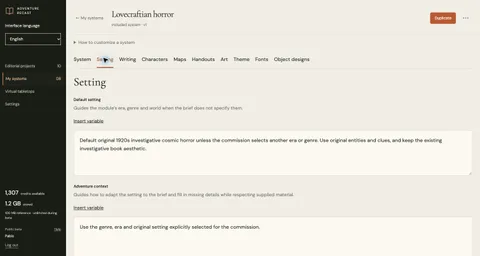
In My systems, open an included profile and choose Duplicate. Name the personal copy; adjust Setting, Writing, Characters, Maps, Handouts and Art instructions.
Theme, Fonts and Object designs define its visual edition. Save the profile and select it for a new module. Existing modules keep the instructions and theme they were created with.
Real editor · English interface and manuscript
01 / 06
Create your own system profile01 / 06Create your own system profile02 / 06Create your own system profile03 / 06Create your own system profile04 / 06Create your own system profile05 / 06Create your own system profile06 / 06
Variables and original instructions
The variable picker inserts the supported placeholders in each instruction. Use Restore original instructions to reset the current instruction when you want to start again.
05
Work with AI
20
What can the assistant do?
+
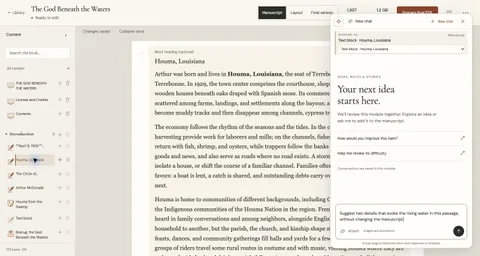
Ask it to explain your adventure, develop an idea, create chapters or scenes, add characters using the selected system, or edit existing content.
Choose the whole module or a more specific context, attach documents or images, and describe the result you want. Review its plan, progress, changes and credit usage.
For a consultation: “Explain this character’s motivations without changing the manuscript.” For a change: “Add a scene with two clues in this chapter.”
Give constraints, tone and references. Check the result in the manuscript and save any manual adjustments. Ask for changes to the selected passage when you only want that part revised.
Real editor · English interface and manuscript
01 / 02
What can the assistant do?01 / 02What can the assistant do?02 / 02
21
Rewrite a specific passage
+
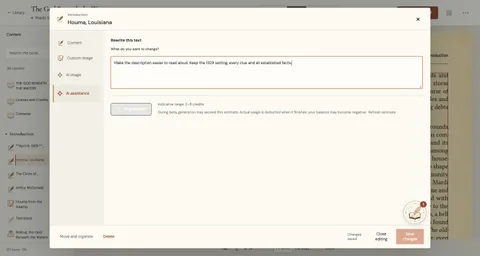
Open a text block and choose AI assistance. Describe a focused edit: shorten a description, clarify a clue or change its tone. State the facts and rules that must remain.
Review the credit estimate before Regenerate, then read the result and check it in Layout. For changes across several scenes, use the module assistant with the appropriate context.
Real editor · English interface and manuscript
Rewrite a specific passage01 / 01
22
Understand credits and AI controls
+
Writing, saving and composing pages manually use no credits. AI requests show estimates; actual consumption is deducted on completion and may exceed the estimate during beta.
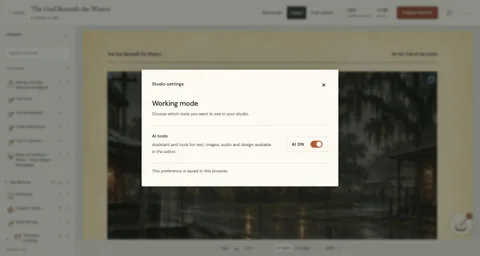
Studio settings lets you show or hide AI tools in this browser. Your existing content stays in the book. Use the account settings to inspect your available credits and activity.
Real editor · English interface and manuscript
Understand credits and AI controls01 / 01
Can I sell the material I create?
Material created with AI through Adventure Recast may not be commercialized. It is intended for the personal use and enjoyment of its creator and their friends or gaming group.<br><br> For material created 100% by humans, any commercial use must comply with the licence of the game system used (BRP, D&D SRD, etc.) and with the licences of any text, illustrations or other resources included.
06
Review and export
23
Check the details before sharing
+
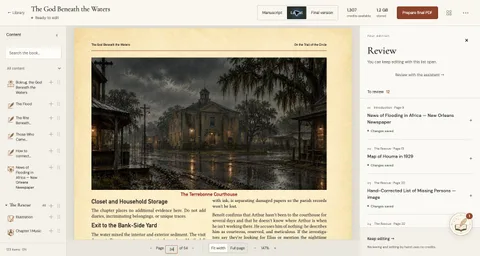
Open ••• → Review to see items needing attention while you keep editing. Inspect the affected text or resource; some image changes require regeneration.
Check page breaks, headings, sheets and images in Layout. Manual corrections use no credits. Prepare the final PDF after saving the changes you want to include.
Real editor · English interface and manuscript
Check the details before sharing01 / 01
Resolve, reopen and recover
Mark an issue reviewed after checking it, or reopen it if it needs another pass. This tracks your review; it does not rewrite the content.
For an interrupted edition, resume pending work or deliberately restart a new run. Retrying page composition uses no AI credits; new AI generation is charged according to its actual use.
24
Final PDF
+
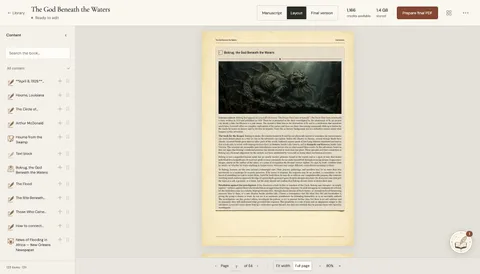
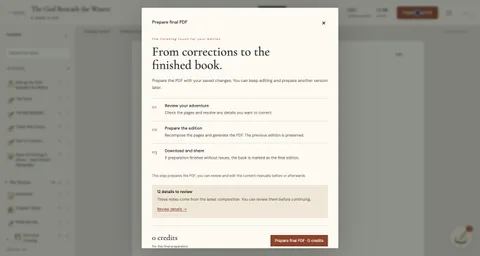
Use Layout to review pages, then Prepare final PDF. Final version shows the finished edition once preparation completes.
Real editor · English interface and manuscript
Final PDF01 / 01
25
PDF · Markdown
+
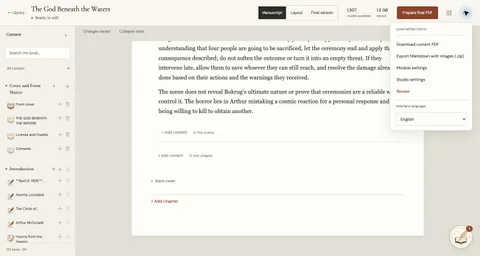
The module menu offers the current PDF and Export Markdown with images (.zip). Review the layout before preparing the final PDF.
Real editor · English interface and manuscript
PDF · Markdown01 / 01
07
VTTs · Virtual tabletops
Bring your finished adventure to a virtual tabletop. Choose your platform and keep maps, characters and handouts close at hand.
26
Connect Owlbear Rodeo
+
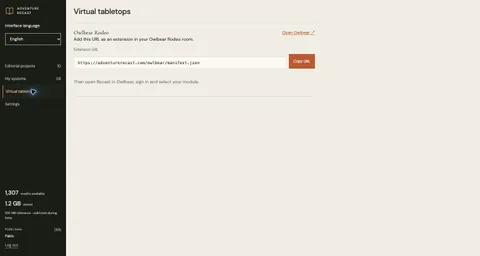
For Owlbear, open Virtual tabletops, add the displayed extension URL to your room, then sign in to Recast there and choose your module.
Real editor · English interface and manuscript
Connect Owlbear Rodeo01 / 01
27
Bring scenes and images to the table
+
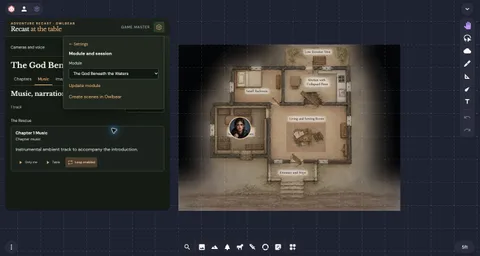
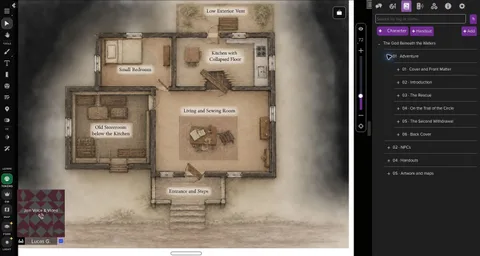
In Owlbear, open Recast → Settings → Module and session. Import an adventure: the room receives an independent copy. Browse its chapters and scenes while keeping GM notes private.
Enlarge opens an image for you. Show to players places an illustration, map or handout in the current scene; Hide removes that shared image.
Create scene adds a scene to the Owlbear atlas. Create all scenes imports the module’s scenes into a chosen folder; open the desired scene from the atlas. Repeating the import creates more copies.
Real editor · English interface and manuscript
01 / 05
Bring scenes and images to the table01 / 05Bring scenes and images to the table02 / 05Bring scenes and images to the table03 / 05Bring scenes and images to the table04 / 05Bring scenes and images to the table05 / 05
28
Use sheets and tokens in play
+
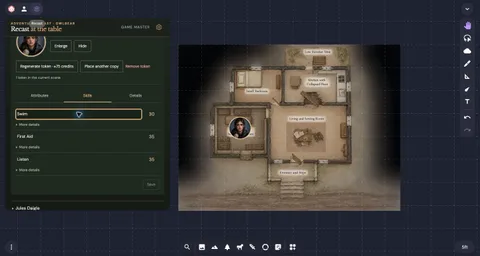
Choose an NPC or PC. Edit a PC’s session sheet or an NPC’s available skill values. Generate a token, check the credit estimate, then place one or more copies in an open Owlbear scene.
Manage a character’s placed copies together: hide, show or remove them. Regenerating a token image does not replace copies already placed.
Give a player a sheet invitation through your usual private channel. They can use their sheet without a Recast account. Updating the module from Settings preserves player sheets and session tokens.
Real editor · English interface and manuscript
01 / 03
Use sheets and tokens in play01 / 03Use sheets and tokens in play02 / 03Use sheets and tokens in play03 / 03
29
Set the sound for your session
+
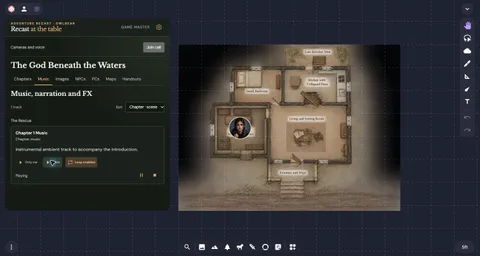
Open Music to browse the adventure’s tracks. Private preview is for you; shared playback is for the room after each participant enables audio.
Use music or narration alongside a separate effects channel. Adjust your own listening volume or the shared mix; pause, loop or stop the relevant channel.
Settings also holds optional voice and camera controls. Choose devices there before joining a call; the browser asks for microphone or camera permission when needed.
Real editor · English interface and manuscript
01 / 03
Set the sound for your session01 / 03Set the sound for your session02 / 03Set the sound for your session03 / 03
30
Import an adventure into Roll20Experimental
+
Open a Roll20 game as GM and the Adventure Recast extension for Chrome. Connect your Recast account, then select a book or an Owlbear play copy.
Prepare the adventure copy, review its inventory and import it. Check pages, images, characters, handouts and tables before playing. Updates report conflicts with local edits instead of overwriting them automatically.
Open the companion table for session sheets, player invitations, shared images and audio. Keep that tab open for sound; tracks are played there rather than in the Roll20 Jukebox.
Native NPC sheets currently support D&D 5e (2014). Other characters use generic sheets.
In RecastSecond-edition adventures, native kitty sheets and PDF layouts. Power Up! options are selected explicitly; epic campaign tracking is not automated.
Recast uses the open rules listed here. Related games illustrate the same rules family; their settings and specific rule variants are not included. These references do not imply an official affiliation.
Your profile shapes the creative direction. Character creation and game mechanics still use the selected base system’s rules.
 ADVENTURE